Thursday, September 30, 2010

Running Apache Traffic Server on Fedora 13

Apache Traffic server from Yahoo! Inc. is really powerful, extensible web server which is proved to serve 75K reqs/sec on commodity hardware.

In this post, you'll learn how to download and run the Traffic server on your desktop, notebook.


1. Download TrafficServer 2.0.1 (latest as of 30-Sep-2010)

http://trafficserver.apache.org/downloads.html

2. Install the following packages


[nareshv@fallenangel ~]$ sudo yum install autoconf automake \
libtool gcc-c++ glibc-devel \
openssl-devel tcl-devel \
expat-devel sqlite-devel \
pcre-devel -y


3. Extract the trafficserver and build it


[nareshv@fallenangel ~]$ tar jxf trafficserver-2.0.1.tar.bz2
[nareshv@fallenangel ~]$ cd trafficserver-2.0.1
[nareshv@fallenangel trafficserver-2.0.1]$ ./configure
[nareshv@fallenangel trafficserver-2.0.1]$ gmake
[nareshv@fallenangel trafficserver-2.0.1]$ sudo gmake install


Now, all the required files would be installed in "/usr/local" instead of Fedora's default /usr. Lets configure Traffic server to act as ReverseProxy for apache

5. set servername of your proxy (so that it will come up in the HTTP headers)


[nareshv@fallenangel ~]$ sudo vim /usr/local/etc/trafficserver/records.config

# Change line 22 (it might vary) to put your hostname like shown below
22 #CONFIG proxy.config.proxy_name STRING <proxy_name>
22 CONFIG proxy.config.proxy_name STRING fallenangel


6. Make the Traffic server listen on port 80 by default


[nareshv@fallenangel ~]$ sudo vim /usr/local/etc/trafficserver/records.config

# Change 8080 port to 80 like shown below
105 #CONFIG proxy.config.http.server_port INT 8080
105 CONFIG proxy.config.http.server_port INT 80


7. Make Traffic server act as reverse proxy for apache

You can add as many rules as you want. The configuration file is well defined


[nareshv@fallenangel ~]$ sudo vim /usr/local/etc/trafficserver/remap.config

124
125 map http://localhost:80/ http://localhost:8080/
126 map http://fallenangel:80/ http://localhost:8080/


8. configure apache to listen on port 8080


[nareshv@fallenangel ~]$ sudo vim /etc/httpd/conf/httpd.conf
# Change it from default port 80 to 8080
#Listen 80
Listen 8080


9. Restart apache


[nareshv@fallenangel ~]$ sudo /etc/init.d/httpd restart


10. Restart traffic server


[nareshv@fallenangel ~]$ sudo /usr/local/bin/trafficserver restart
Stopping traffic_cop: [ OK ]
Stopping traffic_manager: [ OK ]
Stopping traffic_server: [ OK ]
Starting Apache Traffic Server: [ OK ]


11. Make simple request to your TrafficServer to test if everything is ok


[nareshv@fallenangel ~]$ ~]$ curl -v http://localhost/
* About to connect() to localhost port 80 (#0)
* Trying ::1... Connection refused
* Trying 127.0.0.1... connected
* Connected to localhost (127.0.0.1) port 80 (#0)
> GET / HTTP/1.1
> User-Agent: curl/7.20.1 (x86_64-redhat-linux-gnu) libcurl/7.20.1 NSS/3.12.6.2 zlib/1.2.3 libidn/1.16 libssh2/1.2.4
> Host: localhost
> Accept: */*
>
< HTTP/1.1 404 Not Found
< Date: Thu, 30 Sep 2010 09:47:53 GMT
< Server: ATS/2.0.1
< Content-Type: text/html; charset=iso-8859-1
< Age: 0
< Transfer-Encoding: chunked
< Connection: keep-alive
< Via: HTTP/1.1 fallenangel (ApacheTrafficServer/2.0.1 [cMs f ])
<
<!DOCTYPE HTML PUBLIC "-//IETF//DTD HTML 2.0//EN">
<html><head>
<title>404 Not Found</title>
</head><body>
<h1>Not Found</h1>
<p>The requested URL / was not found on this server.</p>
<hr>
<address>Apache/2.2.16 (Fedora) Server at localhost Port 8080</address>
</body></html>
* Connection #0 to host localhost left intact
* Closing connection #0
Saturday, September 25, 2010

64-bit Flash Plugin on Fedora-13 running Firefox 4

Firefox 4 is around the corner, those who are running Fedora-13 and want to try out the latest 64-bit flash plugin. These are the instructions

1. Go to our mozilla plugins directory


[nareshv@fallenangel plugins]$ cd ~/.mozilla/plugins
[nareshv@fallenangel plugins]$ pwd
/home/nareshv/.mozilla/plugins


2. Download the latest flash plugin from the following url http://labs.adobe.com/downloads/flashplayer10.html and follow these steps

Latest download link is here.

[nareshv@fallenangel plugins]$ wget 'http://download.macromedia.com/pub/labs/flashplayer10/flashplayer_square_p1_64bit_linux_091510.tar.gz'
--2010-09-25 19:16:17-- http://download.macromedia.com/pub/labs/flashplayer10/flashplayer_square_p1_64bit_linux_091510.tar.gz
Resolving download.macromedia.com... 69.192.35.191
Connecting to download.macromedia.com|69.192.35.191|:80... connected.
HTTP request sent, awaiting response... 200 OK
Length: 4308402 (4.1M) [application/x-gzip]
Saving to: “flashplayer_square_p1_64bit_linux_091510.tar.gz”

100%[========================================================================================================================================>] 4,308,402 506K/s in 13s

2010-09-25 19:16:31 (332 KB/s) - “flashplayer_square_p1_64bit_linux_091510.tar.gz” saved [4308402/4308402]

[nareshv@fallenangel plugins]$ tar zxf flashplayer_square_p1_64bit_linux_091510.tar.gz
[nareshv@fallenangel plugins]$ ls
flashplayer_square_p1_64bit_linux_091510.tar.gz libflashplayer.so libflashplayer.so.old
[nareshv@fallenangel plugins]$ ls -l libflashplayer.so
-rw-rw-r--. 1 envy envy 10601968 Sep 4 04:47 libflashplayer.so


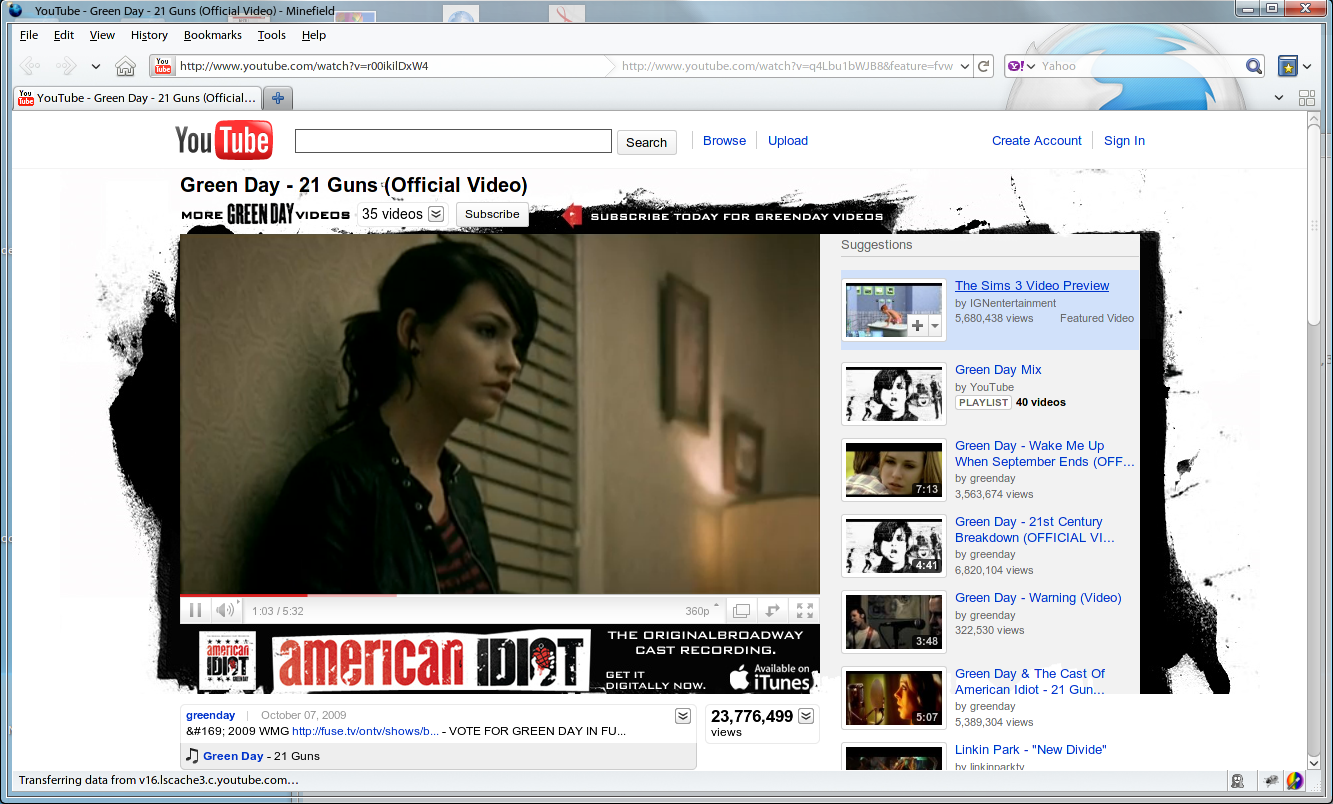
3. open http://www.youtube.com and see the flash player in action


4. Have fun with the new flash player.

Thursday, June 11, 2009

Fedora 11 64-bit Final on Macbook Pro 4,1

Installation Process


1. Touchpad


Touchpad doesn't work as usual during installation. Connect a USB mouse and things should be ok.

2. Install


Burn the DVD from http://fedoraproject.org and install OS as usual. If you need some help regarding the partitioning refer to this post

Post Install Process


1. BootDisk error


If you re-format all your partitions using Fedora-11 DVD during the installation, you might see this error "Invalid Boot Disk -- Insert boot disk and press any key to continue" error.

In order to fix this error, you need follow these steps


  1. Reboot your system
  2. Go to the 'refit' menu
  3. Choose the second icon from the left (Partitioning tool)
  4. If you see the 'refresh mbr', then do as requested
  5. Thats all! Now you should be able to boot correctly into Fedora


Shutdown your macbook and reboot. Now everything should work as usual


2. Wireless


You no longer need to install the ndiswrapper manually. Configure the 'livna' repository and install the ndiswrapper.


bash$ sudo yum install ndiswrapper


Download the drivers from here, and add them to the ndiswrapper


bash$ cd /tmp/drivers
bash$ sudo ndiswrapper -i *.inf
bash$ sudo ndiswrapper -m
bash$ sudo ndiswrapper -mi
bash$ sudo ndiswrapper -ml


3. Touchpad/Tapping


Fedora 11 Automatically configures the touchpad driver using the bcm5974 driver present in the 2.6.29 kernel.

But, not all the tapping/right-click,scrolling features are available. You need to create a new .fdi file with all the options to "synaptics" driver


nareshv@localhost $ cd /usr/share/hal/fdi/policy/20thirdparty
nareshv@localhost $ cp 10-synaptics.fdi 100-synaptics-custom.fdi


(Now edit 100-synaptics-custom.fdi, with the following contents)


nareshv@localhost $ cat 100-synaptics-custom.fdi
<?xml version="1.0" encoding="ISO-8859-1"?>

<!-- DO NOT EDIT THIS FILE IN PLACE.
This file will be overwritten with the next update. If you need to add
custom options, copy the file into /etc/hal/fdi/policy/ first.

See https://fedoraproject.org/wiki/Input_device_configuration -->

<deviceinfo version="0.2">
<device>
<match key="info.capabilities" contains="input.touchpad">
<!-- To add custom options for the touchpad, modify the examples below
to suit your needs. The available options are listed in the
"synaptics" man page. After modifyfing this file, you must
restart HAL. Check the output of lshal whether your modifications
have been merged successfully.

Note: <merge key="input.x11_options.s must always be type "string".
The following examples enable left, right, middle clicks on
single, double, triple finger tapping, respectively.

<merge key="input.x11_options.TapButton1" type="string">1</merge>
<merge key="input.x11_options.TapButton2" type="string">3</merge>
<merge key="input.x11_options.TapButton3" type="string">2</merge>
-->
<merge key="input.x11_driver" type="string">synaptics</merge>
<merge key="input.x11_options.LeftEdge" type="string">10</merge>
<merge key="input.x11_options.RightEdge" type="string">1200</merge>
<merge key="input.x11_options.TopEdge" type="string">10</merge>
<merge key="input.x11_options.BottomEdge" type="string">370</merge>
<merge key="input.x11_options.FingerLow" type="string">10</merge>
<merge key="input.x11_options.FingerHigh" type="string">20</merge>
<merge key="input.x11_options.MaxTapTime" type="string">180</merge>
<merge key="input.x11_options.MaxTapMove" type="string">220</merge>
<merge key="input.x11_options.SingleTapTimeout" type="string">100</merge>
<merge key="input.x11_options.MaxDoubleTapTime" type="string">180</merge>
<merge key="input.x11_options.LockedDrags" type="string">off</merge>
<merge key="input.x11_options.MinSpeed" type="string">1.10</merge>
<merge key="input.x11_options.MaxSpeed" type="string">1.30</merge>
<merge key="input.x11_options.AccelFactor" type="string">0.08</merge>
<merge key="input.x11_options.TapButton1" type="string">1</merge>
<merge key="input.x11_options.TapButton2" type="string">3</merge>
<merge key="input.x11_options.TapButton3" type="string">2</merge>
<merge key="input.x11_options.ClickFinger1" type="string">1</merge>
<merge key="input.x11_options.ClickFinger2" type="string">3</merge>
<merge key="input.x11_options.ClickFinger3" type="string">2</merge>
<merge key="input.x11_options.RTCornerButton" type="string">0</merge>
<merge key="input.x11_options.RBCornerButton" type="string">0</merge>
<merge key="input.x11_options.LTCornerButton" type="string">0</merge>
<merge key="input.x11_options.LBCornerButton" type="string">0</merge>
<merge key="input.x11_options.VertScrollDelta" type="string">20</merge>
<merge key="input.x11_options.HorizScrollDelta" type="string">50</merge>
<merge key="input.x11_options.HorizEdgeScroll" type="string">0</merge>
<merge key="input.x11_options.VertEdgeScroll" type="string">0</merge>
<merge key="input.x11_options.VertTwoFingerScroll" type="string">1</merge>
<merge key="input.x11_options.HorizTwoFingerScroll" type="string">1</merge>
</match>
</device>
</deviceinfo>


NOTE: If you want to adjust the tapping, speed of mouse scroll, do these things


nareshv@localhost $ sudo yum install gsynaptics


Make your changes. and run the following command to see the latest changes. Now use the below keywords and update the above .fdi file.


nareshv@localhost $ synclient -l
Parameter settings:
LeftEdge = 10
RightEdge = 1200
TopEdge = 10
BottomEdge = 370
FingerLow = 10
FingerHigh = 20
FingerPress = 256
MaxTapTime = 180
MaxTapMove = 220
MaxDoubleTapTime = 180
SingleTapTimeout = 100
ClickTime = 100
FastTaps = 0
EmulateMidButtonTime = 75
EmulateTwoFingerMinZ = 282
EmulateTwoFingerMinW = 7
VertScrollDelta = 20
HorizScrollDelta = 50
VertEdgeScroll = 0
HorizEdgeScroll = 0
CornerCoasting = 0
VertTwoFingerScroll = 1
HorizTwoFingerScroll = 0
MinSpeed = 1.1
MaxSpeed = 0
AccelFactor = 1.3
TrackstickSpeed = 0
EdgeMotionMinZ = 30
EdgeMotionMaxZ = 160
EdgeMotionMinSpeed = 1
EdgeMotionMaxSpeed = 120
EdgeMotionUseAlways = 0
UpDownScrolling = 1
LeftRightScrolling = 1
UpDownScrollRepeat = 1
LeftRightScrollRepeat = 1
ScrollButtonRepeat = 100
TouchpadOff = 0
GuestMouseOff = 0
LockedDrags = 0
LockedDragTimeout = 5000
RTCornerButton = 0
RBCornerButton = 0
LTCornerButton = 0
LBCornerButton = 0
TapButton1 = 0
TapButton2 = 0
TapButton3 = 0
ClickFinger1 = 1
ClickFinger2 = 3
ClickFinger3 = 2
CircularScrolling = 0
CircScrollDelta = 0.1
CircScrollTrigger = 0
CircularPad = 0
PalmDetect = 0
PalmMinWidth = 10
PalmMinZ = 200
CoastingSpeed = 0
PressureMotionMinZ = 30
PressureMotionMaxZ = 160
PressureMotionMinFactor = 1
PressureMotionMaxFactor = 0
GrabEventDevice = 1


4. Audio


Somehow the audio doesn't work out of the box, you need to set the model option


bash$ echo "options snd_hda_intel model=mbp3" >> /etc/modprobe.d/sound


5. Bluetooth


Works out of the box

6. Firewire


Haven't tested (Don't have a device to check)

7. Microphone


Haven't tested

8. Network Card


Works out of the box

9. Nvidia Graphics card


Works out of the box, using "nouveau" driver.

10. Keyboard special keys / Backlight


works out of the box.


11. isight (webcam)


Works out of the box.

12. Sensors


Works out of the box.


nareshv@localhost $ sensors
applesmc-isa-0300
Adapter: ISA adapter
Left side :1996 RPM (min = 2000 RPM)
Right side :1999 RPM (min = 2000 RPM)
temp1: +32.2°C
temp2: +43.2°C
temp3: +42.0°C
temp4: +52.5°C
temp5: +43.0°C
temp6: +70.0°C
temp7: +51.5°C
temp8: +42.8°C
temp9: +36.8°C
temp10: +37.0°C
temp11: +37.8°C
temp12: +34.0°C


14. Suspend , Resume


Fedora 11 still has this suspend resume bug. Upon resume we will get this error from dmesg and the mouse will be stuck


nareshv@ localhost $ | dmesg | tail -1
bcm5974: bad trackpad package, length: 8


Fix is as described in my earlier post.


(If you are running 32-bit Fedora 11 use /usr/lib instead of /usr/lib64)


nareshv@nareshv «sr/lib64/pm-utils/sleep.d $ ls -l
total 64
-rwxr-xr-x. 1 root root 2490 2009-04-24 15:21 00auto-quirk*
-rwxr-xr-x. 1 root root 274 2009-04-24 15:21 00logging*
-rwxr-xr-x. 1 root root 203 2009-04-24 15:21 00powersave*
-rwxr-xr-x. 1 root root 809 2009-04-24 15:21 01grub*
-rwxr-xr-x. 1 root root 664 2009-04-24 15:21 49bluetooth*
-rwxr-xr-x. 1 root root 991 2009-04-24 15:21 55NetworkManager*
-rwxr-xr-x. 1 root root 141 2009-02-26 19:25 56atd*
-rwxr-xr-x. 1 root root 335 2009-04-24 15:21 75modules*
-rwxr-xr-x. 1 root root 455 2009-04-24 15:21 90clock*
-rwxr-xr-x. 1 root root 1098 2009-04-24 15:21 94cpufreq*
-rwxr-xr-x. 1 root root 297 2009-04-24 15:21 95led*
-rwxr-xr-x. 1 root root 707 2009-04-24 14:57 95packagekit*
-rwxr-xr-x. 1 root root 2269 2009-04-24 15:21 98smart-kernel-video*
-rwxr-xr-x. 1 root root 2068 2009-04-24 15:21 99hd-apm-restore.hook*
-rwxr-xr-x. 1 root root 5685 2009-04-24 15:21 99video*

[nareshv@nareshv ~]$ cat /usr/lib64/pm-utils/sleep.d/02touchpad
#!/bin/bash

if [ -e '/usr/lib64/pm-utils/functions' ];then
. /usr/lib64/pm-utils/functions
fi

suspend_bcm5974() { /sbin/rmmod bcm5974; }
resume_bcm5974() { /sbin/modprobe bcm5974; }

case "$1" in
suspend|hibernate)
suspend_bcm5974;
;;
thaw|resume)
resume_bcm5974;
;;
*)
;;
esac

exit $?

Saturday, February 07, 2009

Fedora 11 Alpha 64-bit on Macbook Pro 4,1

Yesterday Fedora has Released 'Alpha' version of its upcoming Operating System code named 'Leonidas' (Version 11).

Though i already have Fedora 11 from rawhide, i had installed the Alpha version from the DVD.

NOTE: Pre-Final releases are not recommended for daily usage, be warned.

Installation Process


Touchpad


During installation you notice that the 'touchpad' doesn't work. You need to plug in a USB Mouse and proceed with the installation

The whole installation process worked seamlessly

Post Installation


Audio


This still isn't being detected correctly, i had to follow my earlier hack to get this working

create the following file.

nareshv@nareshv:~ $ cat /etc/modprobe.d/audio
options snd_hda_intel model=mbp3


2. Ndiswrapper 1.54 version


There seem to be some problem with the 'rpmfusion' repository, so i had to compile ndiswrapper 1.54 myself. During the compilation you might see errors like this


nareshv@nareshv:/tmp/ndiswrapper-1.54 $ gmake
make -C driver
make[1]: Entering directory `/tmp/ndiswrapper-1.54/driver'
make -C /usr/src/kernels/2.6.29-0.66.rc3.fc11.x86_64 M=/tmp/ndiswrapper-1.54/driver
make[2]: Entering directory `/usr/src/kernels/2.6.29-0.66.rc3.fc11.x86_64'
LD /tmp/ndiswrapper-1.54/driver/built-in.o
MKEXPORT /tmp/ndiswrapper-1.54/driver/crt_exports.h
CC [M] /tmp/ndiswrapper-1.54/driver/crt.o
MKEXPORT /tmp/ndiswrapper-1.54/driver/hal_exports.h
CC [M] /tmp/ndiswrapper-1.54/driver/hal.o
CC [M] /tmp/ndiswrapper-1.54/driver/iw_ndis.o
CC [M] /tmp/ndiswrapper-1.54/driver/loader.o
MKEXPORT /tmp/ndiswrapper-1.54/driver/ndis_exports.h
CC [M] /tmp/ndiswrapper-1.54/driver/ndis.o
/tmp/ndiswrapper-1.54/driver/ndis.c: In function ‘NdisSystemProcessorCount’:
/tmp/ndiswrapper-1.54/driver/ndis.c:2627: warning: overflow in implicit constant conversion
MKEXPORT /tmp/ndiswrapper-1.54/driver/ntoskernel_exports.h
CC [M] /tmp/ndiswrapper-1.54/driver/ntoskernel.o
MKEXPORT /tmp/ndiswrapper-1.54/driver/ntoskernel_io_exports.h
CC [M] /tmp/ndiswrapper-1.54/driver/ntoskernel_io.o
CC [M] /tmp/ndiswrapper-1.54/driver/pe_linker.o
CC [M] /tmp/ndiswrapper-1.54/driver/pnp.o
CC [M] /tmp/ndiswrapper-1.54/driver/proc.o
MKEXPORT /tmp/ndiswrapper-1.54/driver/rtl_exports.h
CC [M] /tmp/ndiswrapper-1.54/driver/rtl.o
CC [M] /tmp/ndiswrapper-1.54/driver/wrapmem.o
CC [M] /tmp/ndiswrapper-1.54/driver/wrapndis.o
/tmp/ndiswrapper-1.54/driver/wrapndis.c:1747:3: error: invalid preprocessing directive #.
make[3]: *** [/tmp/ndiswrapper-1.54/driver/wrapndis.o] Error 1
make[2]: *** [_module_/tmp/ndiswrapper-1.54/driver] Error 2
make[2]: Leaving directory `/usr/src/kernels/2.6.29-0.66.rc3.fc11.x86_64'
make[1]: *** [modules] Error 2
make[1]: Leaving directory `/tmp/ndiswrapper-1.54/driver'
gmake: *** [all] Error 2
nareshv@nareshv:/tmp/ndiswrapper-1.54 $


In order to get rid of that error, i had done a minor hack.


nareshv@nareshv:/tmp/ndiswrapper-1.54 $ vim driver/wrapndis.c

1744 >___.ndo_set_mac_address = ndis_set_mac_address,
1745 >___.ndo_get_stats = ndis_get_stats,
1746 /*#ifdef CONFIG_NET_POLL_CONTROLLER
1747 >___.poll_controller = ndis_poll_controller;
1748 #endif*/
1749 };
1750 #endif


Just comment the lines from 1746 to 1748. The compilation will work just fine.

3. KDE-4.2


Kde-4.2 is included in the latest release, which is very good in terms of rendering, when compared to the earlier versions.

You might still see some screen corruption in the system tray, which the kde team has yet to fix.


4. Pommed-1.25 for apple keyboard special keys


You need to install pommed-1.25 version, in order to run with 2.6.29 kernel

Nvidia Drivers


You no longer need to do any hacks like -IgnoreABI in order to work with xorg-1.6, Nvidia driver 180.25 has support to work with latest xorg.

Few Gotchas


sudo commands


You notice a big delay till the command is executed, when you run any sudo commands, not sure whats the problem here is.

GDM and Preferred Desktop


No matter which desktop you choose, GDM tries to reset your preferred desktop to "GNOME". For me i was choosing KDE all the time, but whenever i reboot, the default desktop is getting reset to "GNOME"

There are many other features which you can find at the release notes

Tuesday, January 13, 2009

Fedora 11 (Leonidas) 64-bit - Rawhide - on Macbook Pro 4,1

Fedora 11 is not out yet, its just in the rawhide repository. In order to upgrade from Fedora 10 to Fedora 11, you need to do it via yum.

Pre Upgrade Steps


1. Enable the rawhide repository


cat /etc/yum.repos.d/rawhide.repo

[rawhide]
name=Fedora - Rawhide - Developmental packages for the next Fedora release
failovermethod=priority
#baseurl=http://download.fedoraproject.org/pub/fedora/linux/development/$basearch/os/
mirrorlist=http://mirrors.fedoraproject.org/mirrorlist?repo=rawhide&arch=$basearch
enabled=1
gpgcheck=0
gpgkey=file:///etc/pki/rpm-gpg/RPM-GPG-KEY-fedora-test-$basearch file:///etc/pki/rpm-gpg/RPM-GPG-KEY-fedora-$basearch


2. Remove the python-2.5 packages as it will conflict with the python-2.6 on rawhide


/bin/rpm -e fusion-icon-gtk compiz-gnome ccsm ekiga setroubleshoot setroubleshoot-server compizconfig-python fusion-desktop-effects fusion-icon fusion-icon setroubleshoot-plugins


(Skip the missing ones, i had installed extra packages, so above command worked for me)

3. Now do a yum update


sudo yum update -y


Post upgrade steps


After the installation is complete, you need to edit the following configuration files

1. Update /boot/grub/grub.conf to allow the nvidia driver to be loaded on 2.6.29 kernel


title Fedora (2.6.29-0.28.rc1.fc11.x86_64)
root (hd0,2)
kernel /vmlinuz-2.6.29-0.28.rc1.fc11.x86_64 ro root=UUID=25d9d23a-5a17-4ffe-831f-556213caaa16 rhgb quiet nopat
initrd /initrd-2.6.29-0.28.rc1.fc11.x86_64.img


nopat is the option which you should add.

2. Current nvidia driver 180.22, doesn't work with the latest xorg that is being shipped with the Fedora 11.

You will see an error in /var/log/Xorg.0.log if you fail to do this step


112 ================ WARNING WARNING WARNING WARNING ================
113 This server has a video driver ABI version of 5.0 that this
114 driver does not officially support. Please check
115 http://www.nvidia.com/ for driver updates or downgrade to an X
116 server with a supported driver ABI.
117 =================================================================
118 (EE) NVIDIA: Use the -ignoreABI option to override this check.
119 (II) UnloadModule: "nvidia"
120 (II) Unloading /usr/lib64/xorg/modules/drivers//nvidia_drv.so
121 (EE) Failed to load module "nvidia" (module requirement mismatch, 0)
122 (II) LoadModule: "synaptics"
123 (II) Reloading /usr/lib64/xorg/modules/input//synaptics_drv.so
124 (EE) No drivers available.
125
126 Fatal server error:
127 no screens found


The fix is simple (which i had mentioned earlier for the older nvidia driver)

a. Rename your current Xorg binary


mv /usr/bin/Xorg /usr/bin/Xorg.0


b. Create a blank Xorg file, make it executable


touch /usr/bin/Xorg
chmod +x /usr/bin/Xorg


c. Add the following lines


vi /usr/bin/Xorg

#!/bin/bash
exec /usr/bin/Xorg.0 -ignoreABI "$@"


3. Thats it, now restart your macbook, and boot into the newly installed Fedora 11 Rawhide (9.10)


nareshv /etc/yum.repos.d $ cat /etc/issue
Fedora release 10.90 (Rawhide)
Kernel \r on an \m (\l)


I have just installed Fedora 11, so far seems promising, no crashes yet.

Few notes

Firefox version is bumped up to 3.1 by default

Monday, January 05, 2009

Fedora 10 64-bit on Nvidia 180.16 running 2.6.29 kernel

Fedora 10 64-bit on 2.6.29 kernel with Nvidia 180.16

2.6.29 is not yet in the stable branch. Be warned

Koji has the latest 2.6.29 kernel release. In order to try that, just download the latest kernel and install them


nareshv@@ /home/nareshv/Download $ ls -l kernel*
-rw-rw-r-- 1 nareshv nareshv 23262282 2009-01-05 17:01 kernel-2.6.29-0.9.rc0.git4.fc11.x86_64.rpm
-rw-rw-r-- 1 nareshv nareshv 6121797 2009-01-05 16:59 kernel-devel-2.6.29-0.9.rc0.git4.fc11.x86_64.rpm
-rw-rw-r-- 1 nareshv nareshv 388583 2009-01-05 16:59 kernel-firmware-2.6.29-0.9.rc0.git4.fc11.noarch.rpm


Also, Trying out the Latest Nvidia Drivers on 2.6.28 is easy too. You can download the Nvidia drivers from here

First time if you boot the kernel, you will see error something like this in the xorg.log


195 (II) resource ranges after preInit:
196 >___[0] -1>_0>__0xffffffff - 0xffffffff (0x1) MX[B]
197 >___[1] -1>_0>__0x000f0000 - 0x000fffff (0x10000) MX[B]
198 >___[2] -1>_0>__0x000c0000 - 0x000effff (0x30000) MX[B]
199 >___[3] -1>_0>__0x00000000 - 0x0009ffff (0xa0000) MX[B]
200 >___[4] -1>_0>__0x0000ffff - 0x0000ffff (0x1) IX[B]
201 >___[5] -1>_0>__0x00000000 - 0x00000000 (0x1) IX[B]
202 (II) NVIDIA(0): Initialized GPU GART.
203 (II) NVIDIA(0): ACPI display change hotkey events enabled: the X server is new
204 (II) NVIDIA(0): enough to receive ACPI display change hotkey events.
205 (II) NVIDIA(0): Setting mode "nvidia-auto-select"
206 (EE) NVIDIA(0): Failed to allocate video memory
207 (EE) NVIDIA(0): *** Aborting ***
208
209 Fatal server error:
210 AddScreen/ScreenInit failed for driver 0


In order to workaround this error, you need to add the following option to the grub.conf


14 title Fedora (2.6.29-0.9.rc0.git4.fc11.x86_64)
15 >___root (hd0,2)
16 >___kernel /vmlinuz-2.6.29-0.9.rc0.git4.fc11.x86_64 ro root=UUID=25d9d23a-5a17-4ffe-831f-556213caaa16 rhgb quiet nopat
17 >___initrd /initrd-2.6.29-0.9.rc0.git4.fc11.x86_64.img


nopat is our friend here.

Enjoy your 2.6.29 kernel running latest nvidia driver on Fedora 10.

Saturday, December 20, 2008

Fedora 10 64-bit on 2.6.28 kernel with Nvidia 180.16

Fedora 10 64-bit on 2.6.28 kernel with Nvidia 180.16

Linux kernel 2.6.28 will be out during christmas. I Wanted to try it on my Fedora 10 Desktop. Just download the kernel,kernel-devel,kernel-firmware rpms from koji.

Also, Trying out the Latest Nvidia Drivers on 2.6.28 is easy too. You can download the Nvidia drivers from here

You need 180.16 or higher version of nvidia driver which works seamlessly with 2.6.28 kernel. Or you might have to do some hacks ;-)